
Quest Conversion Tutorial
by digitalparanoid and thermador
Working on quests for Skywind is actually a fairly straightforward, repetitive process. However, it is a steep learning curve for the first few quests, especially if you have never worked with the Creation Kit before. This guide should help introduce you to the basics of the Creation Kit, and specifically, how to work on Skywind quests. If you are already very experienced with the Creation Kit, see these quick notes for advanced users.
Tutorial index:
- Prerequisites - Installing Software
- Getting Started - Finding Quests, using the CK and CS
- The Quest Data Tab
- The Quest Stages Tab
- The Quest Objectives Tab - Creating Objectives
- The Quest Aliases Tab - Creating Aliases
- The Quest Objectives Tab - Filling out Quest Objectives with Aliases
- The Quest Aliases Tab - Assigning a Script to an Alias
- The Player Dialogue Tab - Finding Missing Dialog
- The Player Dialogue Tab - Copying Dialog Conditions
- The Player Dialogue Tab - Adding Scripts to Dialogue
- Cleaning your mod with TES5edit
- Testing your mod
- Packing your mod (to upload to Morroblivion.com)
- Useful websites
- Useful scripts for dialogue
For advanced users:
Prerequisites - Installing Software
Step 1: Clean installs of Skyrim and Oblivion
- optional: clean install of Morrowind
This guide assumes that you are starting from scratch. If you are have pre-existing installations of Skyrim, Oblivion, and optionally, Morrowind make full backups of your game directories and then uninstall the games and delete their directories.
If you have purchased or registered these games through Steam, it is easy to install them all in the background without having to worry about getting all the patches and updates, etc.
Step 2: Install the Skyrim Creation Kit and the Oblivion Construction Set
- optional: install the Morrowind Construction Set (on your Morrowind CD-Rom, or available through Steam)
The Skyrim Creation Kit (CK) can be installed through Steam once Skyrim is installed - click here for instructions.
The Oblivion Construction Set (CS) can be installed once Oblivion is installed by downloading the files - click here for instructions & download links. Note that you need to install both the Installer and the Patcher.
- optional: also install Oblivion Script Extender and the Construction Set Extender for added CS functionality and stability
Step 3: Install the latest version of Morroblivion and install the latest version of Skywind
- optional: if you are working on Skyblivion, then install that instead, and you don't need to install Morroblivion obviously
The easiest way to install Morroblivion is to use the complete installation - click here for instructions & download links.
The easiest way to install Skywind is to download the latest version from the project release thread - click here for instructions & download links.
Step 4: Set up the Skywind Exchanger
While you can load both Skyrim.esm and Skywind.esm at the same time in the Construction Kit, it is easier to swap out the Skyrim.esm file with one that has been "stripped" of most of its content. This reduces the time required to load the Creation Kit by over 50%, speeds up the Creation Kit while you are using it, and makes it much easier to find the Skywind content in the Creation Kit because most of the Skyrim content is not present.
Skywind Exchanger is a simple application that swaps back and forth the original Skyrim.esm file with the "stripped" version as needed.
Click here to download the Skywind Exchanger. Click here to download the stripped Skyrim.esm.
Instructions:
- Add a folder entitled "0Skyrim" to your Skyrim\Data directory (so your folder path is \Skyrim\Data\0Skyrim\).
- Copy your stripped .esm inside, and name it "Stripped.esm".
- Copy your original Skyrim.esm (from the \Data\ folder) inside and rename it "Original.esm"
- Leave the original Skyrim.esm in your \Data\ folder with the original Skyrim.esm name.
- Start the Skywind Exchanger.exe application from anywhere on your computer
- At the top of the Exchanger window, enter your Skyrim path and press save
- Launch the Creation Kit or the Game from one of the buttons and the program will automatically swap the correct ESM file for you.
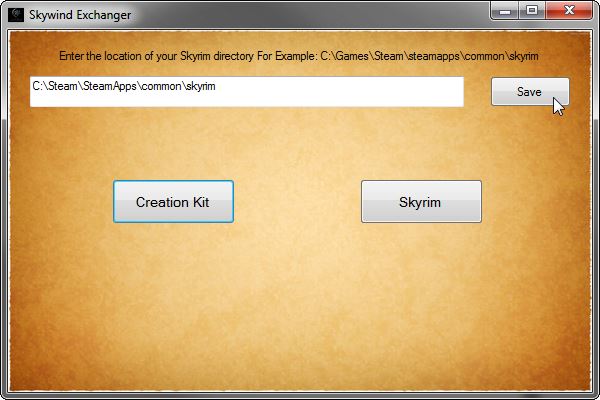
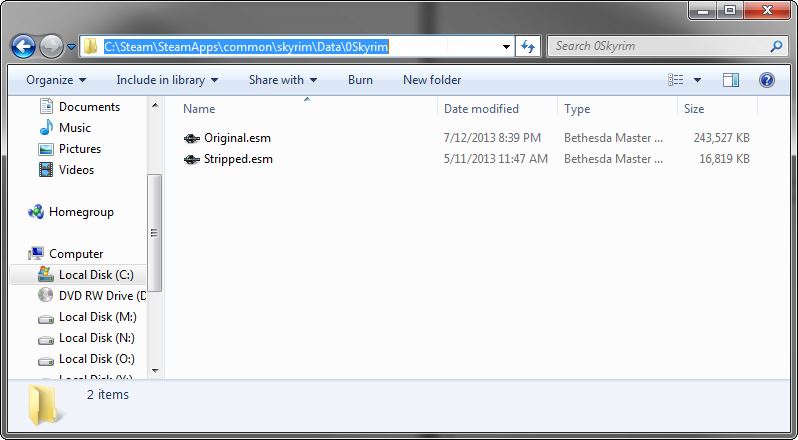
Step 5: Get set up for efficiency (optional)
Efficiency is a somewhat personalized decision, but if you have any additional monitors lying around, now is a good time to set up the second one, so that you can have the Oblivion Contruction Set on one and the Skyrim Creation Kit on the other, since you will be switching back and forth a lot.
For each program you intend to use regularly, set up convenient shortcuts in your preferred method. I typically pin programs to my taskbar in Windows 7. From left to right: Skywind Exchanger, Creation Kit, TES5Edit, Notepad++, and the Oblivion Construction Set.
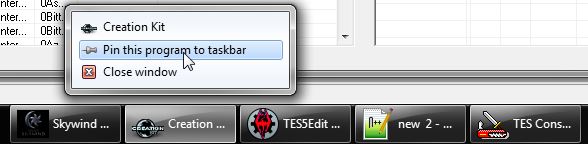
If you plan on working with scripts a lot, then you will probably want to set up an external editor. Note that the Creation Kit natively supports editing in external editors. Personally, I prefer Notepad++, a free windows text editor. There are setup instructions for Notepad++, Sublime Text, Emacs, UltraEdit, and Vim on the Creation Kit Wiki. If you don't have a preferred text editor, either skip this step, or set up Notepad++, which is probably the most widely used.
Why use an external text editor?
It is the difference between editing like this (no color coding, no autofill):

and this (color coding, autofill, syntax highlight, etc.):

Step 6: Extract the scripts from Skywind.bsa (optional)
Following this BSA unpacking tutorial, use the program BSA Unpacker to extract just the scripts from the Skywind.bsa file. Add them to your \Skyrim\Data\Scripts\ folder.
This will allow you to look at the scripts on other quests in Skywind.esm. If you are new to scripting and want to see how other people have set up their scripts, this extra step is highly recommended. Note that you will have to do this step each time an updated version of Skywind.bsa is released.
Note that if you DON'T do this step you will see the message
;CODE NOT LOADED
when you try to view a script in the Creation Kit that you haven't personally created.
Getting Started - Finding Quests, using the CK and CS
Now that you've got everything set up, this next section will focus on starting out with quest work.
Step 1: Open the Creation Kit and set your preferences.
Go to File -> Preferences:
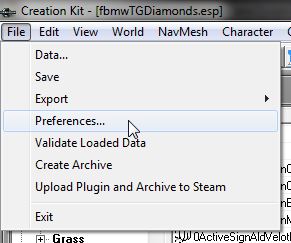
Scroll over to "Scripts" and set your script prefix to "FBMW":
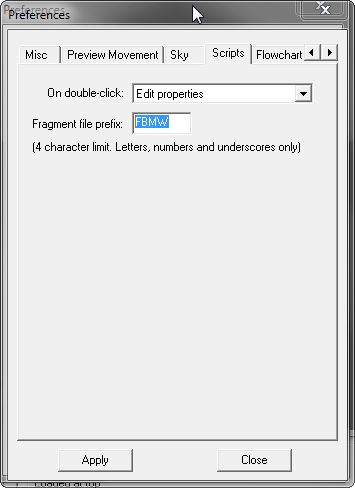
Step 2: Loading files in the CK and CS
In the Oblivion CS, open the Morrowind_ob.esm file by clicking the folder button:
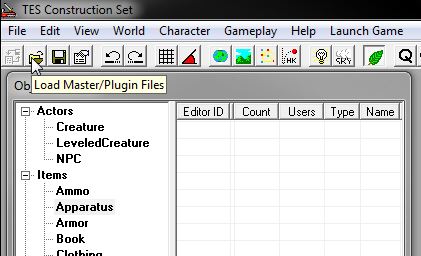
In the window that pops up, double click on Morrowind_ob.esm
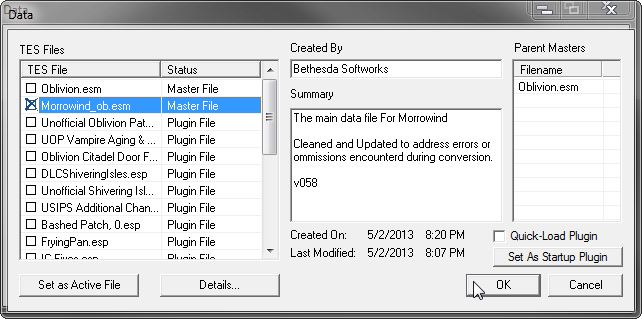
Note that it checks a box next to it. Any other files that are "parent masters" (the list on the right) will be loaded as well, so you only need to check the one box. Then press OK.
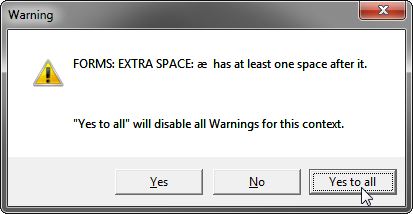
While the CS is loading (for any errors that pop up, click "yes to all"), go back to the Creation Kit. Make sure to run the program through the Skywind Exchanger.
Then, in a similar fashion, open the Skywind master file, Skywind.esm:
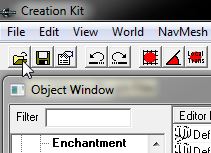
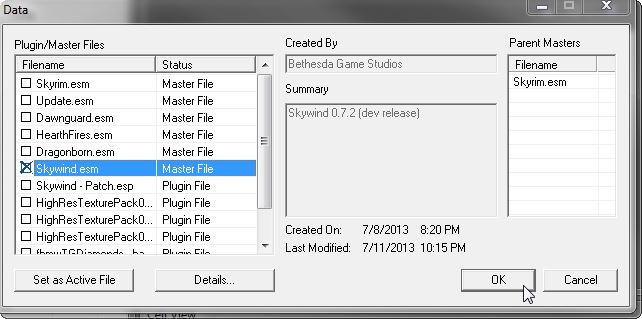
On any errors that pop up, just click "Yes to all"
Step 3: Pick a quest to work on
Have a look at the quest tracker - click here to view - and find a quest that hasn't been taken. Post a note in this thread that you are planning on working on that quest or questline, and the spreadsheet will be updated later.
Find that quests article on a wiki like UESP - that will be your reference for the quest. For this tutorial, we will be doing the Thieves Guild Quest "The Vintage Brandy".

Step 4: Find the quest in the Skyrim Creation Kit
In the CK, open an object window, and navigate to "Character" -> "Quest" and then find the quest named fbmwTGVintageBrandy
- fbmw = prefix used for legacy reasons
- TG = thieves guild, usually a guild prefix
- VintageBrandy = the name of the quest, not always the same as the name of the quest on the Morrowind Wiki or the name you see in the game.
and double click on it.
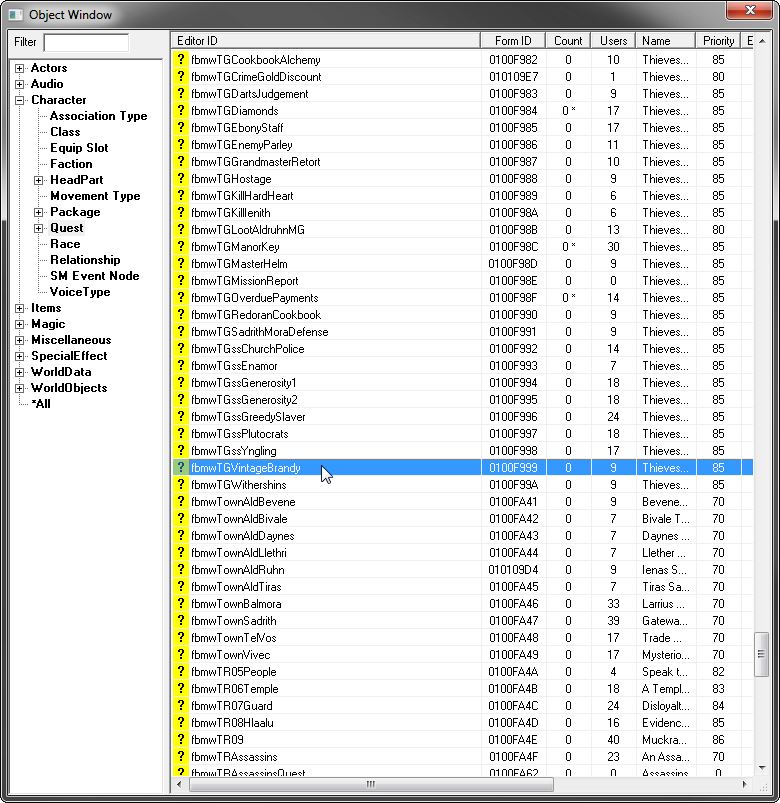
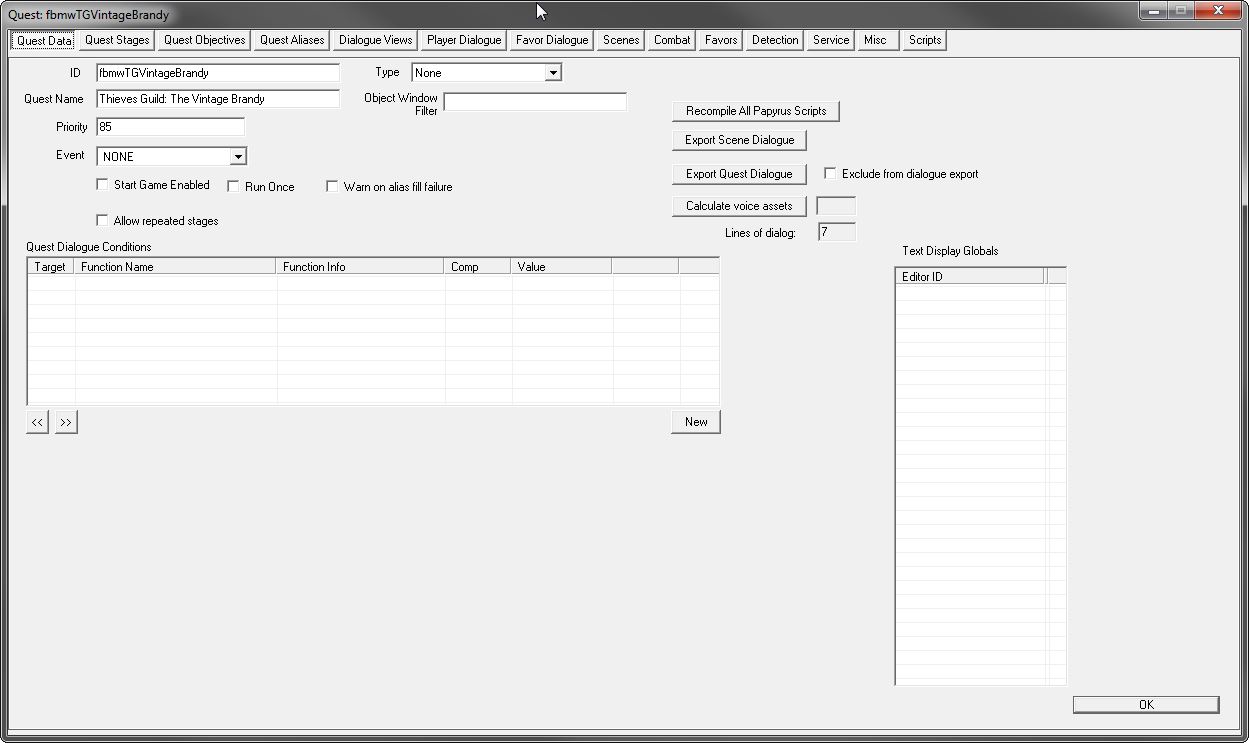
This will open Skyrim's quest window, which you will see a lot of as you work on this:
Step 5: Find the quest in the Oblivion Construction Set
In the Oblivion Construction Set, press the "Q" button at the top:
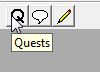
This opens Oblivion's quest window:
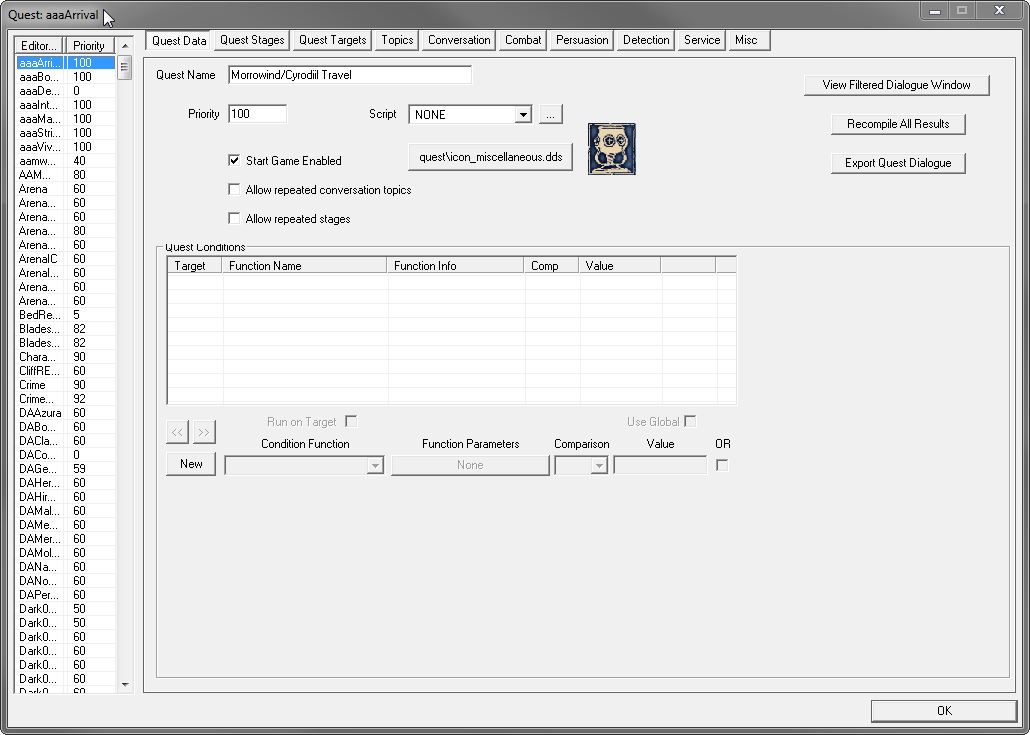
Double click on the bar at the top of the list to expand the names:

Then find the quest in the list:
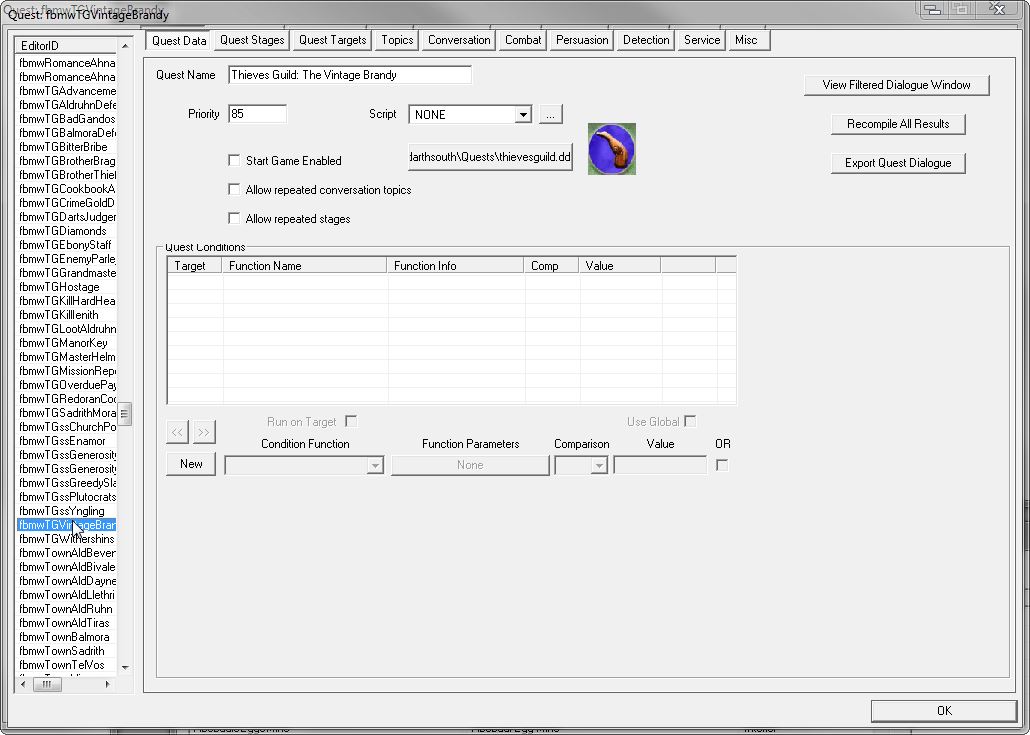
The Quest Data tab in the CK sets up some of the basics of the quest.
Step 1: Check basic settings and copy basic quest conditions:
Odds are, you won't see anything here that you need to change. The main thing is the quest conditions section (the big white area in the center). We want to make sure we have two basic conditions for this quest's dialogue to run.
To make it easier, go back to the list of quests and open a quest that's already been completed (you can have multiple quests open at once), such as fbmwMQ01 or, in this case, fbmwTGOverduePayments.
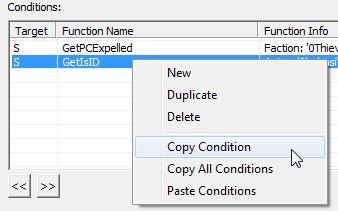
Right-click in the conditions window and choose "Copy all Conditions" as shown.
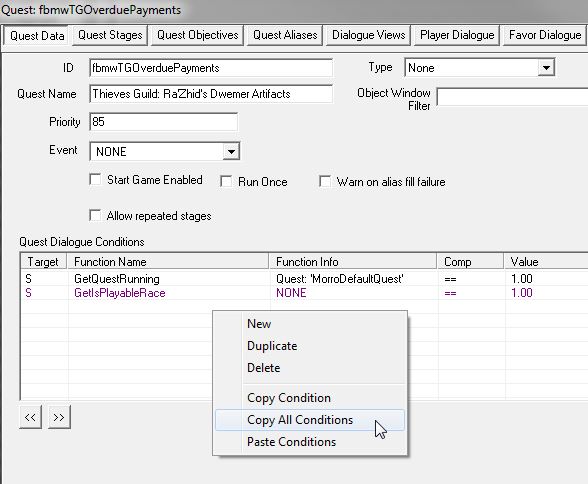
Close the quest and go back to the quest you're working on (fbmwTGVintageBrandy). Right click and choose "Paste Conditions":

Step 2: Save your work
Click "OK" at the bottom of the quest window and save your work.
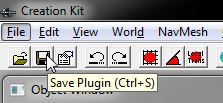
The first time you save a new plugin, you will be asked for a name. Name it whatever you want (I usually use the name of the quest or the quest line) and save it. Let's say you name it fbmwTGDiamonds, because you are working on that quest.
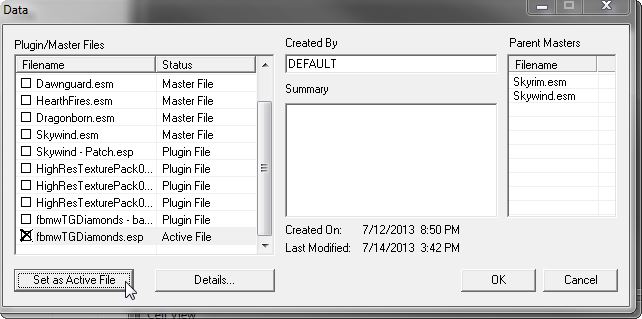
When you open the Creation Kit later, you will want to set your plugin (ESP file) as the active file and load that instead of just Skywind.esm:
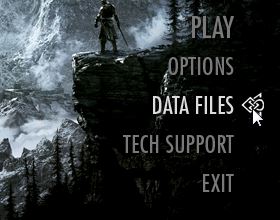
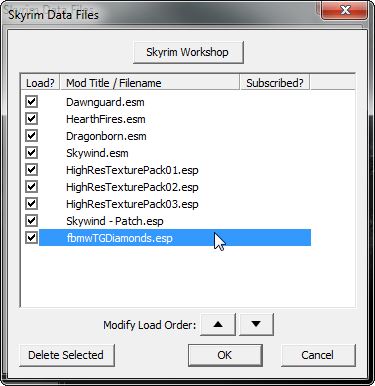
And, when you start the game to test your work (using the button in the Skywind Exchanger of course), you'll want to make sure your plugin is active in your load order:
The Quest Stages tab in the CK sets up the "stages" of the quest. Usually this is something like "Stage 10, get the quest from the quest-giver; Stage 20, you found the item; Stage 100, you brought back the item and received a reward, completing the quest" Obviously it can get more complicated than that.

Step 1: Check the individual quest stages and make sure they are the same in the Oblivion CS and the Skyrim CK.
Looking at the Oblivion CS, in this case, the quest only has four stages, and stage 1 is just a blank placeholder.
Stages don't always have to add a log entry (journal entry). For example, you may want to just add stages without journal data (just to have a script fragment) to update objectives for example.
We see that on Stage 100 of this quest, there is a one-line result script attached to the stage.

Step 2: Copy the result scripts over from Morroblivion to Skywind
Result scripts can be attached to a variety of things in the game, but you will most likely find them attached to quest stages and to dialogue lines.
Since we don't know exactly what this line of script does, but we know it's important, we need to copy it to the equivalent Skywind quest stage:

Note that we put a semicolon ; in front of the line. When the game runs a script line with a semicolon, it ignores whatever is behind the semicolon - a "comment" if you will, or just something we disable until we figure it out. If you can't figure out what a script line does, just copy it over with a ; in front for now.
Also, when you create a new result script, you may find that you need to close the window you are in (press [OK]) and to reopen it for the script box to work correctly.
So here it is in the Skyrim CK:

Step 3: Remember to save your work.
The Quest Objectives tab in the CK sets up the actual objectives (and compass markers) that the player wants to accomplish. These are what are listed in the Skyrim Journal (J key while playing the game).
Usually the objective has the same number as the stage that completes the objective. So if stage 10 says "go fetch", and stage 20 is when you fetch it, then the objective completed at stage 20 should be #20. This will become more clear below:
Step 1: Compare the quest objectives with the old quest targets

In the Oblivion CS, these are called "Quest Targets" and are similar, conceptually, but work in very different ways:

Looking at the Oblivion CS Quest targets we can see some simple quest targets - these are used to define where your compass market points. They typically point to an NPC or item, and have conditions on them that show the marker only during a certain stage of the quest.
Skyrim does things a little differently. Instead, quests have objectives, which are displayed to the player and completed when the player does a certain thing. They typically have fewer conditions, but need to be set up a little differently.
In this quest there are basically two objectives: get the brandy, and return it to the quest-giver, Sugar-Lips Habasi.
Step 2: Create the new quest objectives
Go the the Skyrim CK, Quest Objectives Tab, and right click the window and choose New:

You can always edit these later so play around. You have to write them out yourself, since no such thing existed in Morrowind or Oblivion.

Here, I've created two objectives that will be completed at stages 20, and 100.
Step 3: Save your work
Once you set up your basic objectives, you need to create Aliases. Think of an Alias like an overcoat. You can put it on anything in the game, or take it off anything. Quest Aliases get put on something in the game during the quest. In the Skyrim CK, we need to set up Aliases so the quest objectives can work.

Step 1: Create those Aliases
Since we only have two objectives, we only need two aliases. Well, actually three - one for the intermediate step where we switch objectives.
Right-click to create a new reference alias. We won't be using location aliases in this tutorial; they are useful for radiant quests mainly.

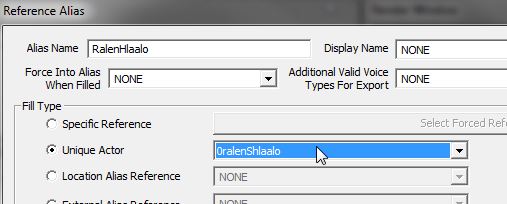
The first alias is a unique actor, Ralen Hlaalo. Or if we wanted the compass to point somewhere else, we could pick "specific reference" and pick his front door, or the bottle of Vintage Brandy itself. But actors are faster to set up.
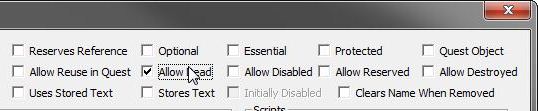
Since he is dead, make sure you check the box "allow dead" at the top. Otherwise, the quest won't start because the aliases (overcoats) can't be filled.
Next, we'll create another alias for Sugar-Lips Habasi, since that's who we'll return the brandy to.

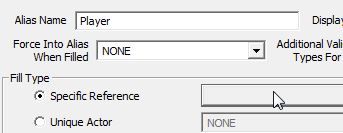
Finally, we'll create one more for the Player (this will be used for the objective switching when the player picks up the Brandy):

Name the alias, and check "Specific Reference" then press the button to the right.
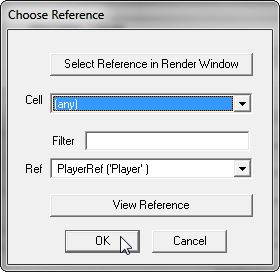
A box pops up. Chose (any) for the cell and then PlayerRef should autofill the "Ref" field below. Press OK
Step 2: Save your work
Filling out the Quest Objectives with Aliases
Now that we've got our aliases, we can finish up our quest objectives.
Step 1: Add a target to each objective, and associate it with an alias
First, go back to that Quest Objectives Tab, and right-click in the middle box to add a new target ref:

Click on the line and set the target alias: Since this stage is to find the Brandy in Ralen Hlaalo's house, set him to be the target alias.

Repeat this exercise for the other objectives. In this case, we set objective 100's target alias to Habasi.
Now, we need to copy an important condition to these quest objectives - you can find in any other completed quest and copy it (such as in MQ02). Open another quest and copy the condition (or just create it manually): GetGlobalValue Global:fbmwShowQuestMarker==1. This will be used to allow players to turn off quest markers (quest objectives).
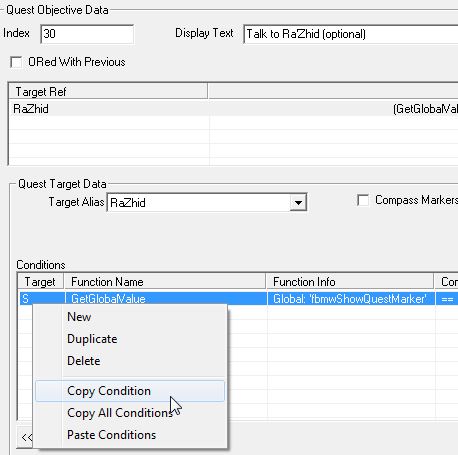
Once you copy the condition, go back to the quest you're working on and paste it in to the quest objective:

Step 2: Going back to the quest stages and adding result scripts to each stage to Display and Complete these objectives
Go back to the Quest Stages tab. (Actually, you can do this any time since the script compiler doesn't check to see if the objectives you set actually exist)
For some of the quest stages, we will need to set objectives, and for others, we will need to complete objectives.
For example, at stage 100 when we return the Vintage Brandy to Habasi, we will be completing objective 100. So that stage should have a result script like so:
SetObjectiveCompleted(100)

Stage 10, on the other hand needs to start an objective for the next stage, so it should have the result script:
SetObjectiveDisplayed(20)
You MUST have a setObjectiveDisplayed(xx) papyrus fragment on the startup stage (usually the first or second stage of the quest), otherwise the quest will not show up in the journal.
But what about in the middle? How do we know when the player has grabbed the Brandy ( SetObjectiveCompleted(20) ) and needs to know what to do next ( SetObjectiveDisplayed(100) ) ? Where do we put those lines? That will be answered in the next section.
Step 3: Save your work
Assigning a Script to an Alias
At some point we need to know when the player picks up the Brandy. This is why we created the Player alias - it is an overcoat on the player that basically is used to monitor the player during the quest. We can assign a script to this alias that reacts when the player adds Brandy to their inventory.
Step 1: Add a script to the Player Alias
Open up the Aliases tab in the quest and double-click the one for the player. Over on the right you will see a section for scripts:
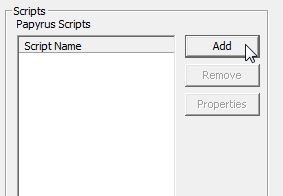
Click the "Add" button and a window pops up:
.jpg)
Double-click new script; and then another window:
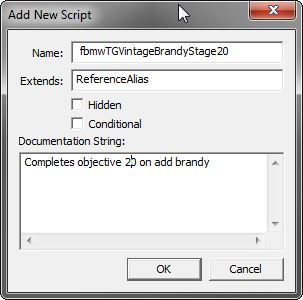
Here, we can name our script. Please use a name that has the quest name as the prefix. This helps keep the scripts organized.
Step 2: Add properties to the script for the Player Alias
Once you've created the script, you'll need to create some "properties". Properties are required for Skyrim's scripts and are a new part of the scripting workflow.
Basically, anything in the game that you refer to in a script will need a property defined. (You can go back and add properties after you write a script, but it's easier to add them first because the script will fail to compile if its properties aren't defined.)
By default, double-clicking on a script will open the properties box. (Or right click on a script and choose "edit properties)

Next, click "add property". This opens another window:
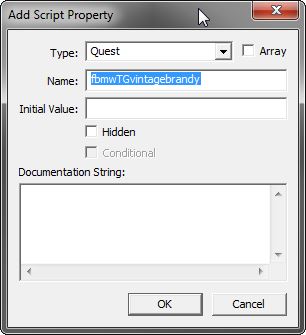
The only really good thing about Properties is that if you name your property the same as the base item, it is less work. So, we will need a quest property, so we set the top box to quest, and then the name to the name of the quest. Since we named it the same as the quest, the Property's "value" (the base object in the game) is filled out automatically:

Then we need a property for the vintage brandy itself (the item the quest-giver sends the player to fetch).
So we add a new property for the brandy itself, but we don't know what the item is called. This is where we go back to the Object Window and use the search filter in the top:
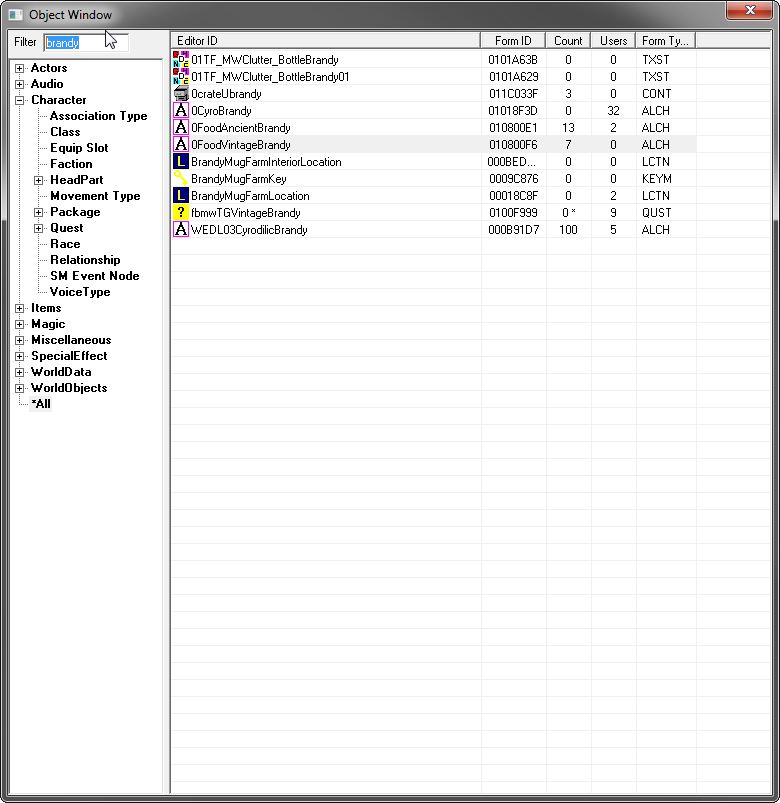
And so we find that the base item is called 0FoodVintageBrandy. So, we go to "add property" and type that in, and select "Potion" as the type. Oops, it won't take names with a number at the beginning. Fine. That means it won't auto-fill the property's value, since the name isn't an exact match.
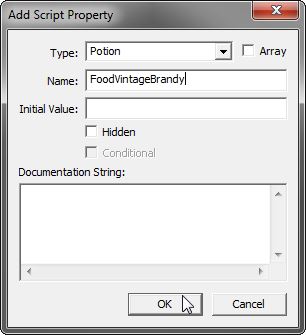
So, click "Edit Value":

And find the item 0FoodVintageBrandy in the list.

In this case, that's all the properties we need, but remember, anything in the game that you refer to in a script will need a property defined.
Step 3: Write the script for the Player Alias
You can go back to the quest window, then open the Player Alias, and then and edit the script by right-clicking on it and choosing "Edit Source". (If you choose "open in external editor" and you have properly set up Notepad++, it will open that.)
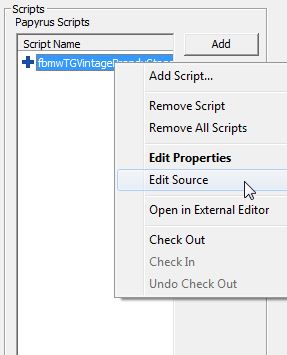
When your editor window pops up, you'll need to add some lines of script - what we want to happen in the game to the Player:
Event OnItemAdded(Form akBaseItem, int aiItemCount, ObjectReference akItemReference, ObjectReference akSourceContainer)
if (akBaseItem == FoodVintageBrandy)
fbmwTGVintageBrandy.SetObjectiveCompleted(20)
fbmwTGVintageBrandy.setObjectiveDisplayed(100)
endif
EndEvent
What does this script do?
- Event OnItemAdded It runs when the player adds an item to his or her inventory
- if (akBaseItem == FoodVintageBrandy) checks to see if the item added was the property we defined earlier (FoodVintageBrandy). As you recall, this property points to the base brandy item 0foodvintagebrandy that we found using the object window.
- fbmwTGVintageBrandy.SetObjectiveCompleted(20) tells the game to complete Objective #20 for this quest and update the player's journal (since the player now has the Brandy).
- fbmwTGVintageBrandy.setObjectiveDisplayed(100) tells the game to update the player's journal with a new objective - which we defined earlier as the one to return the Brandy to Sugar-Lips Habasi.
- EndIf closes out the IF statement so the game knows we are done with the list of things we want it to do if the player has added the brandy to his/her inventory.
- EndEvent closes out the event, finishing the script.
Put into the script, it looks like this:

When you save it (Ctrl+S) the game will try to compile the script (basically, evaluate it and make sure it works).
If all goes well, you should see the message "Compilation Succeeded". Othewise, the compiler will try to tell you why it failed and give you some hints as to how to fix it.
When you write a complicated script, make sure to explain what you're doing - ;comment your scripts - it helps reading them, for you and for the others.
Side Note on Objectives (advanced):It is also possible to have multiple aliases on a single objective:
example1: multiple NPC to kill for the same quest
example2: objective is "fetch itemX for NpcY" and you just have two stages [10: I have been asked to fetch] & [100: I have fetched]
You can set one objective #100 with an alias on the itemX and an alias on the questgiver. Use conditions on the objectives accordingly to display the right alias at the right moment (eg getItemCount)
Step 4: Save your work
The Player Dialogue Tab & Finding Missing Dialog Topics
Now that we've got the basic of the quest stages and objectives set up, and you are a little more familiar with how the scripting system works, we need to go through the dialogue.
Step 1: Compare the Dialogue Lines Between the Games
In the Skyrim Construction Kit, go to the "Player Dialogue" view.

For the Vintage Brandy quest, it looks like this:
The ORDER of the topic infos (the list on the right) is EXTREMELY IMPORTANT! Do not change the order!

In the Oblivion Construction Set, click the equivalent, the "Topics" view.

You will see some similarities; however, with the Oblivion CS there is an extra line called "1corruption". If you look at the text and the speaker, it obviously doesn't belong on this quest. This is an error in the Morroblivion ESM file, unfortunately.

So, we can ignore that one. Otherwise all of the dialogue is there. Except for the GREETING topic.
If you see something weird, like topics that don't belong, please post about it in this thread.
Step 2: Compare, create, and find/move any missing GREETING/Hello lines.
So this gets a little weird. In the Oblivion CS there was a dialogue topic called "GREETING" for every quest, which held the lines that the NPC said to the player when the player first initiated a conversation with the NPC.
In Skyrim, it works a bit differently. Instead, there is the "Misc" tab on the quest window, which holds all the other types of dialogue, including the Skyrim equivalent of GREETING called "Hello".
If you take a look at the Vintage Brandy quest in the Oblivion CS, you'll note there is one GREETING. So we have to find this in the CK and move it to a newly-created Misc/Hello topic.
Side note: If you can't find the greeting that starts a quest in Morroblivion, and you are working on a misc. quest, in the Oblivion CS try checking the quest fbmwMSGreetings (Greetings to Start Various Quests) for your greeting there.
IMPORTANT - only move greetings to a quest if the greeting is obviously a PART of the quest - if you're unsure, DON'T move it.
In the CK, go to the "Misc" tab:

Click New Topic:

Select "Hello" from the list:
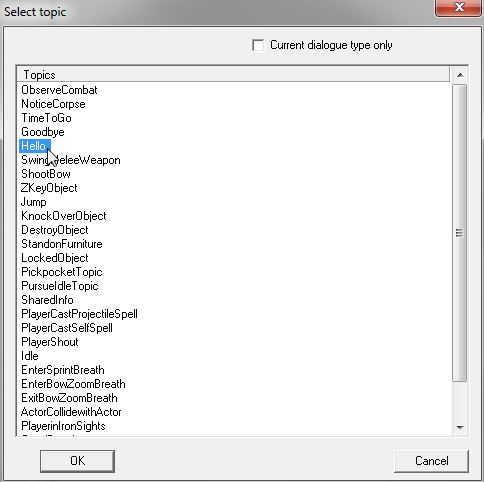
Give it a name - usually the quest name + "GREETING":
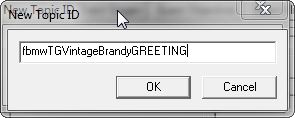
Next, we use the "Edit" -> "Find text..." menu at the top of the CK to find the missing line:
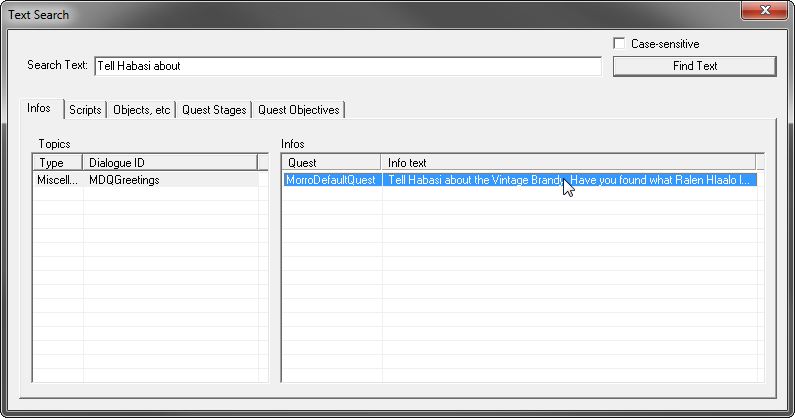
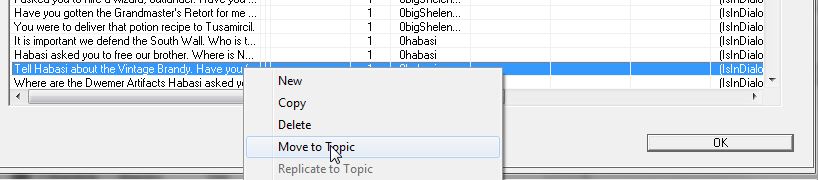
Double-click on it in the search box to open the quest where it's hiding, then right-click on it and choose "Move to Topic"
Next, select the GREETING topic you just created. You will have to uncheck the boxes at the top to show all topics.
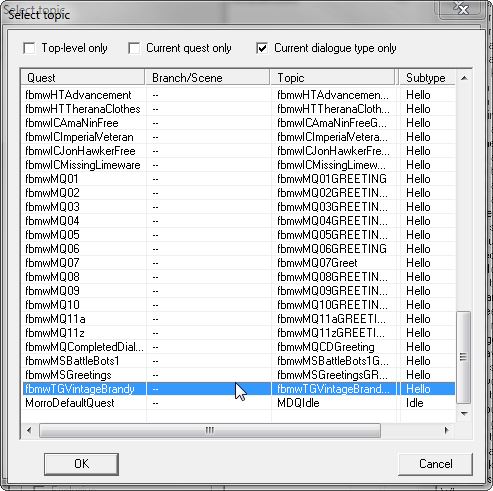
Click ok to move it, resulting in this:

Compare the rest of the lines of dialogue by clicking through both the Skryim CK and the Oblivion CS and make sure everything is in its right place. It is. Good.
Step 5: Save your work
The Player Dialogue Tab & Dialog Conditions
Next, we need to make sure all of the dialogue in the quest in the Skyrim Creation Kit has the appropriate conditions.
Step 1: Basics of dialogue conditions:
A condition is basically like a constraint (or set of constraints) that limits when the dialogue topic will be said by someone. Typically this is something like "GetIsID == Name of NPC" so only the dialogue topic is said by one NPC. There are also conditions like "GetStage == XX" so that the topic is only said during a certain stage of the quest. There are many, many ways to set these up, but luckily all we have to do is copy them.
Here's our Skyrim CK Dialogue window. If you double-click on a line on the right (highlighted blue below), it opens a window to work with that piece of dialogue:

In the Oblivion CS, you don't have to double-click. Everything (conditions, etc.) is below the line, and changes when you click a new line.

Notice that there are three conditions on this line.
- GetIsID == 0habasi == 1 makes sure that only Sugar-Lips Habasi says the line.
- GetPCExpelled == Faction:0ThievesSGuild == 1 makes sure that this line is only said if the player has been expelled from the guild.
- GetInFaction == Faction:0factMorrowind == 1 is a legacy system from Morroblivion - there is no need to copy it
So we have to conditions to create on the equivalent line in the Creation Kit.
If you get into a situation with OR operators, instead of AND, make sure you keep the exact same order of the conditions
For details on how the game evaluates AND/OR logicals in dialogue conditions, read these posts.
Going back to the CK, double click on that same line:
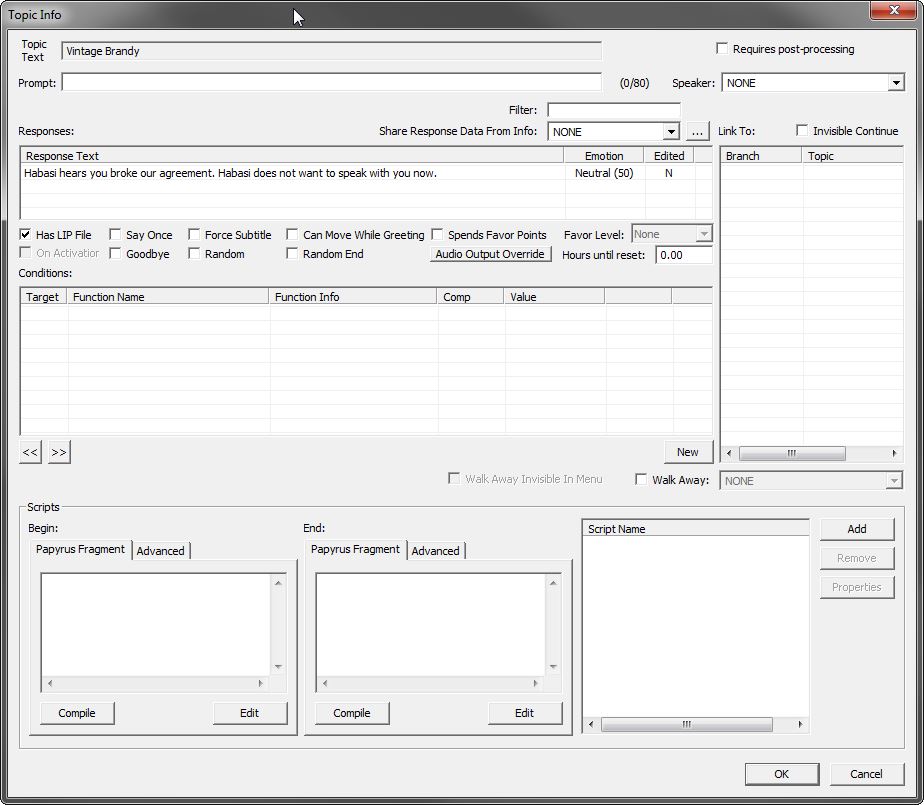
First, at the top, check "Force Subtitle" -- do this on all the lines always so that if the player doesn't have subtitles turned on, they still see the lines. (Yes, people are idiots)

Next, click on that middle section and add a new condition:
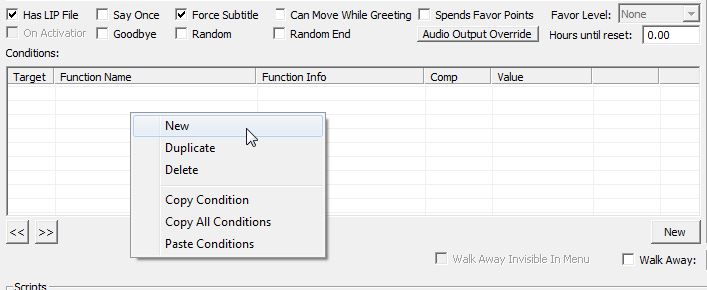
Use the condition menu to set up the condition:

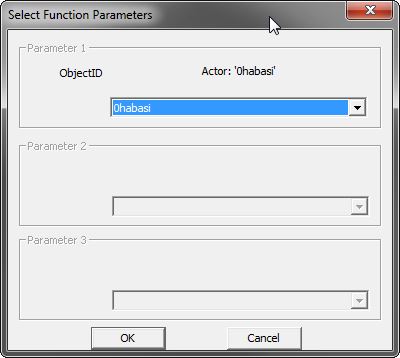
And again for the "GetPCExpelled" condition:

Step 2: A few IMPORTANT tips on working with conditions
Make sure that you set "Subject" and "Target" correctly for dialogue lines.
In the Oblivion CS it is a checkbox called "target" to toggle back and forth. In the CK, you have more options.
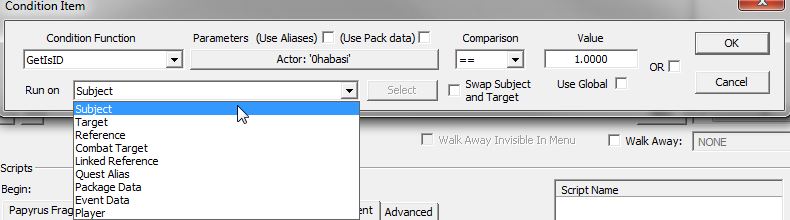
Where you can, use >=, <= instead of == . If you have a condition like getDeadCount == 1, getItemCount == 1 etc... If that doesn't break the logic of other topic infos, use >= 1 (so that your conditions support more cases, like if the Player has more than one of the item, or somehow killed someone twice.)
If your quest comes with conditions already set: review them! they might not be complete/correct. You should also double-check your conditions that you create on each dialogue line (just look at them a second time) to avoid errors, especially when you're just starting out.
Make sure your conditions will restrict this topicInfo to Skywind and will not bleed over to vanilla NPCs.
This is pretty important: For example, if your only condition is getIsRace Khajiit == 1, then all khajiit in vanilla Skyrim or any mod loaded will be impacted. (This is why in Morroblivion we used GetInFaction == Faction:0factMorrowind == 1)
Most of the time, the conditions on factions, locations, and specific NPCs are enough to restrict the dialogue to only Skywind NPCs.
In case of doubt, add a condition getInCurrentLoc OMorrowindLocation == 1 and you're good.
Speaking of conditions on location, you can use getInCurrentLoc for exterior areas and getInCell for interiors.
You can copy and paste conditions from one line to another to save time:
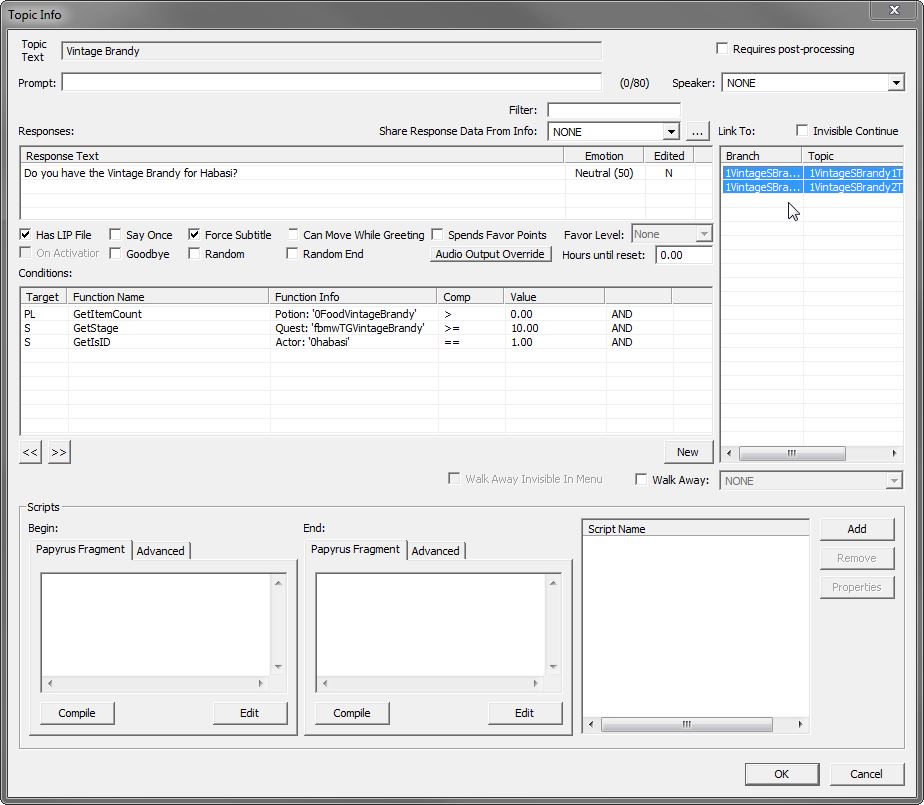
Note that in some dialogue topics you have choices - these point to other dialogue branches that are editable in the main dialogue window. These should already be set up. They are highlighted below in blue so you know where they're at.
Step 3: Save your work
The Player Dialogue Tab & Adding Scripts to Dialogue
Now that all of the dialogue lines are in place, and all of the dialogue conditions are in place, we need to make sure we copy over the dialogue scripts
Step 1: The basics of result scripts
In the Oblivion CS, there is a white text area for each dialogue line where you can type in a result script.
For example, it may just be a one-liner to set the appropriate stage in the script:

These lines are pretty easy to copy; you just have to:
- find the equivalent (same) line in the Skyrim CK
- copy over the script line
- convert it to the format of a Skyrim script
so:
SetStage fbmwTGVintageBrandy 10
becomes:
GetOwningQuest().SetStage(10)
And then we add a couple of comments (with a ; before them so the game engine know they are comments, and not code) which are helpful for keeping track of things.
Most importantly, for the sake of everyone else, put in a comment telling people what quest this script is for. Additionally, if it helps you to stay organized, include the original Oblivion script commands with a ; before them for your reference.
So our script becomes:
;quest is fbmwTGVintageBrandy
;SetStage fbmwTGVintageBrandy 10
GetOwningQuest().SetStage(10)
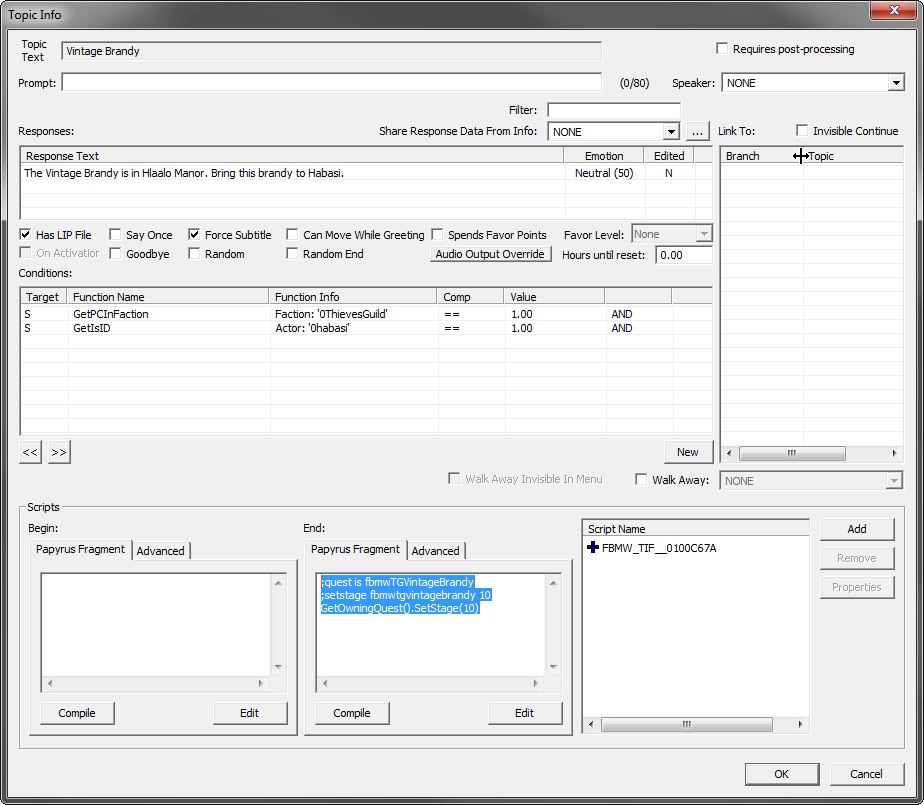
Step 2: Working with more complicated result scripts
The same basic process applies, but there is more to keep track of. Like the scripts on our aliases earlier, we need to define properties for everything that we refer to in the script.
Let's look at a more complicated result script, where you complete the quest and you get your reward from Sugar-Lips Habasi.
Note that the box for result scripts in Oblivion is very small and it is easy to miss lines that are not shown - make sure to catch them all!
While only two lines are shown, there are actually about six lines if you scroll the box:

First, copy those lines to the Skyrim CK in the appropriate place, and put comments in front of them:
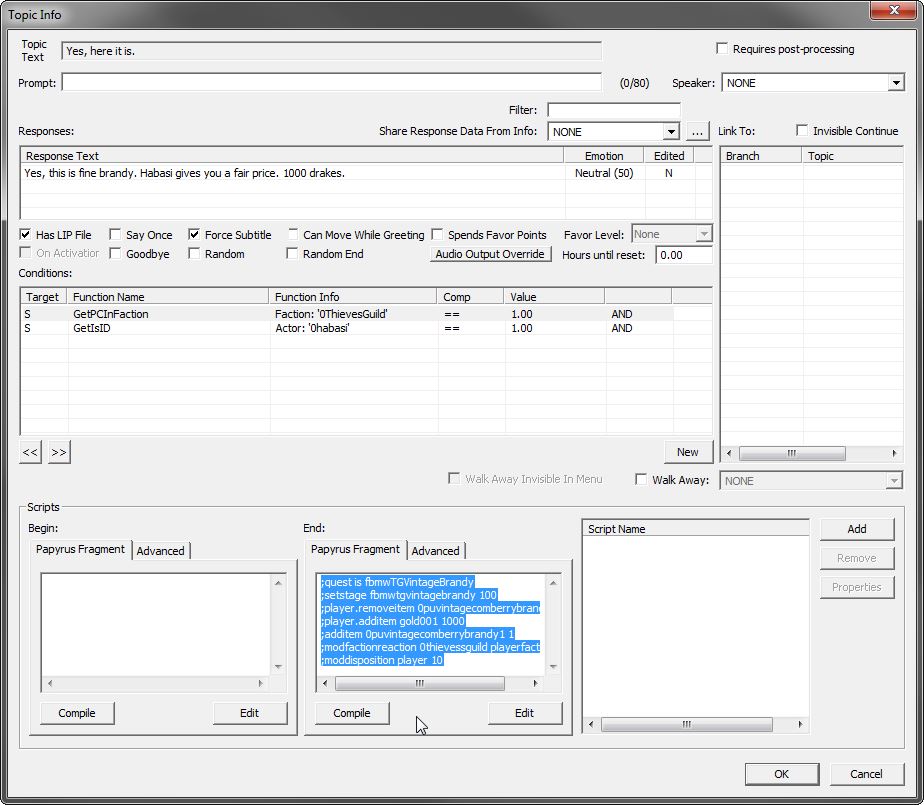
Next, go line by line and figure out the equivalent script for Skyrim. This will get easier as you go, because most Morrowind quests have very simple result scripts, so there are only a few commands to know.
The final script will be:
;quest is fbmwTGVintageBrandy
;setstage fbmwtgvintagebrandy 100
GetOwningQuest().SetStage(100)
;player.removeitem 0puvintagecomberrybrandy1 1
Game.GetPlayer().RemoveItem(FoodVintageBrandy, 1)
;player.additem gold001 1000
Game.GetPlayer().AddItem(Gold001, 1000)
;additem 0puvintagecomberrybrandy1 1
Game.GetPlayer().AddItem(Greef, 1)
;modfactionreaction 0thievessguild playerfaction 5
ThievesGuild.ModReaction(PlayerFaction, 5)
;moddisposition player 10
Note that you have to define five properties for this script (in bold text above) for this script to compile.
If you forgot how to define properties, click here to jump to that section of the guide.
At the end, your properties look like this:
.jpg)
If you did everything right, you should be able to successfully compile the script (press the "compile" button) and check it for errors.
Step 3: Save your work
Remember that mistake I made in this quest? Moving the dialogue line "1corruption" when I shouldn't have?
Luckily, there is an easy way to edit our mod files (the .esp file you've been saving so regularly).A
A little program called TES5Edit - download link - will let you fix your mistakes. Download the program, and extract the files to your main \Skyrim\ folder (not \Skyrim\Data\).
If you want to learn more about how powerful a tool TES5edit can be, there are plenty of links and reading at the download link.
Step 1: Removing your mistakes from a mod (very basic)
Then double click on your mod (or check its box and press OK).
When you run TES5edit, it will ask you what file, or multiple files, to open.
Right-click and choose "Select None".
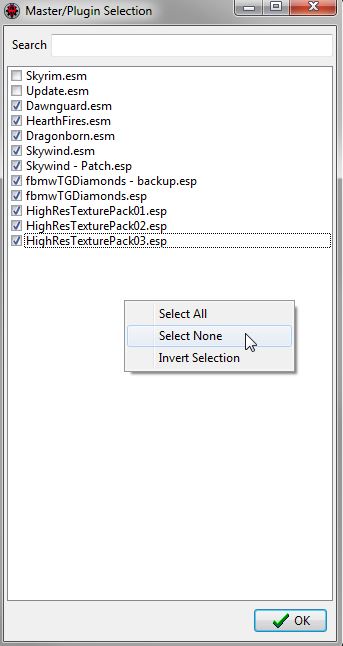
Then double click on your mod (or check its box and press OK).
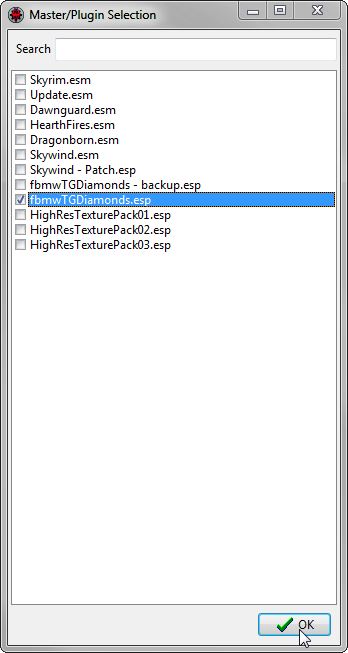
Wait for the program to finish loading your mod and its master files.

In this example, we know what we're looking for (the dialogue topic), so we open up the tree on the left and find it. Then we right-click it and choose "Remove".
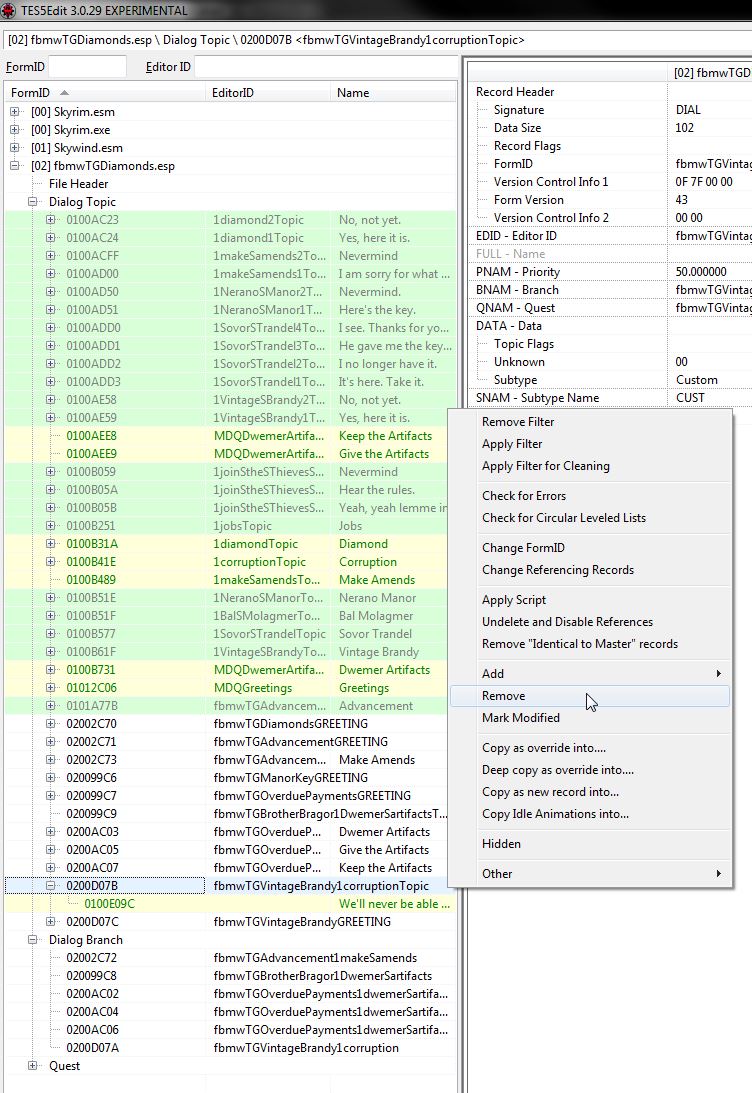
The first time you choose "Remove" you get a warning message:
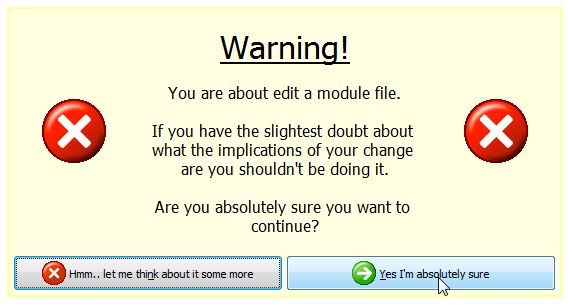
Just wait and press "Yes I'm absolutely sure." (Even if you mess up, you can close the program without saving, so no big deal)
There's one more part we need to remove (the dialogue branch) and then we're done with that:
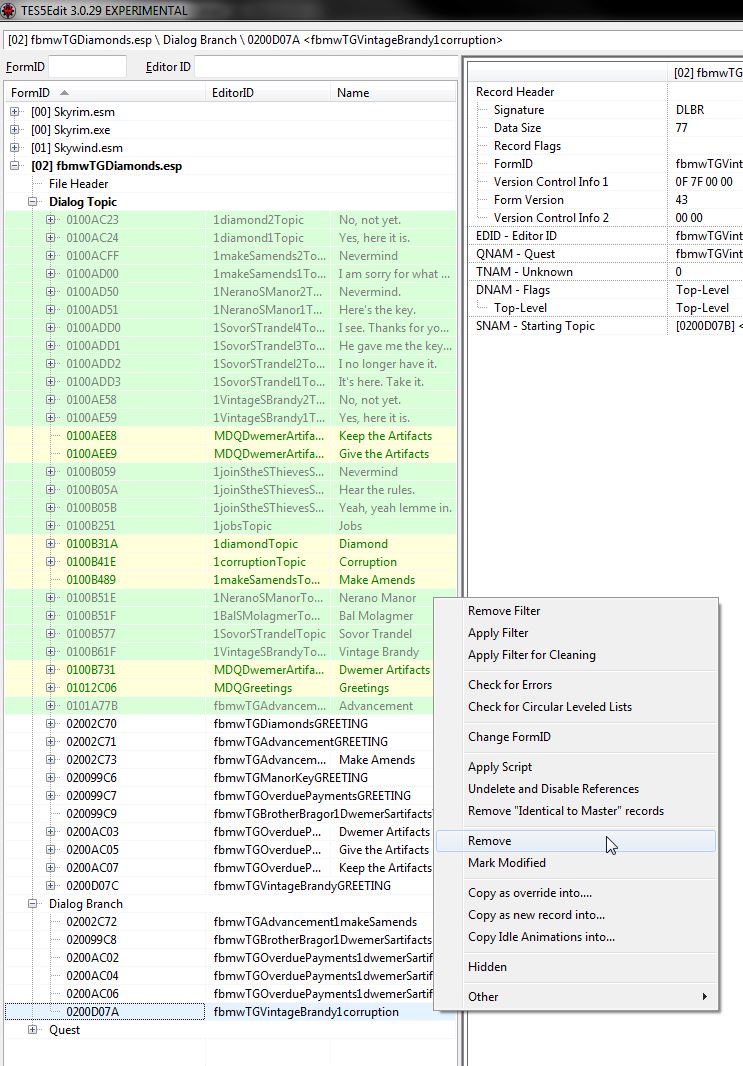
Step 2: Cleaning your mod
Now, we get to a sore subject with many modders - dirty mods. No not that kind of dirty - what we mean is that there are pieces of data in the mod that we don't need, or even want, but they are either added by mistake, or added due to bugs in the creation kit.
For more info on mod cleaning, see this article and this article.
Luckily, TES5edit can automate this process.
First, we go to the top and right-click on the header row for our .esp file, and choose "Apply Filter"
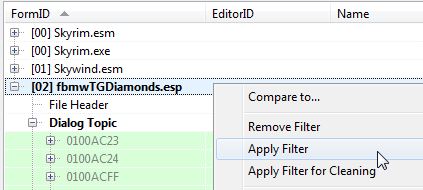
Next, we make sure the only box that is checked at the bottom that says "Conflict status inherited by parent." The rest of the sections should be unchecked, as shown below.

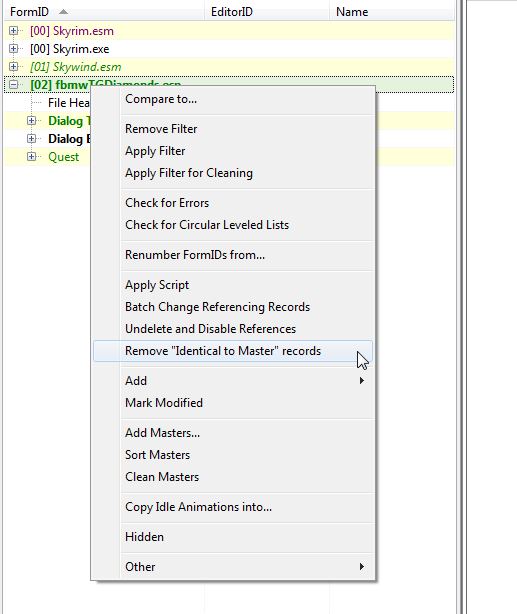
Once the program is done applying the filter, we can right-click again and click "Remove "Identical to Master" records"
Once that's done, you'll see a message below with what it removed. Note that it removes two records that I didn't even mess with, but for some reason (thanks CK) they were included in the mod's file.
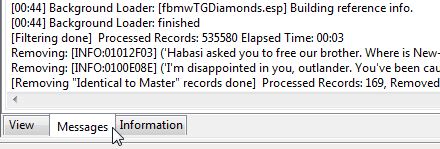
If you see something there that you didn't WANT removed, make sure to NOT save the file and maybe start over or clean the mod by hand by looking for things that shouldn't be there and removing them.
Finally, we save the mod.
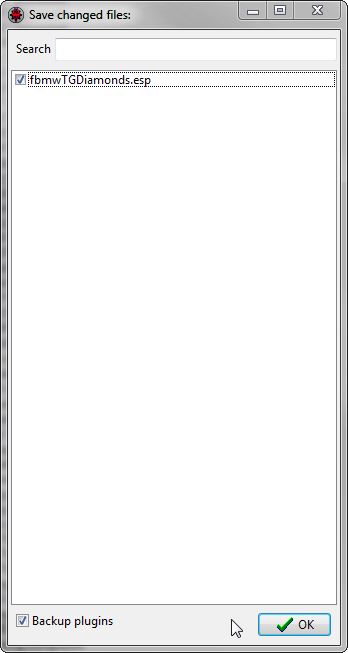
Step 1: Make sure your mod is active in your load order.
Step 2: Make sure you are familiar with the way the quest works
Go to UESP and find your quest, and make sure you know how it is supposed to work.
Step 3: Make a savegame just before you start the quest
This will really speed up the testing.
Step 4: Play through the quest every way possible
Many quests have multiple ways to play through them, so make sure to test them all.
Step 5: Note any problems and go back and fix them
Don't worry if you don't get them right the first time - that almost never happens.
Useful in-game quest commands from the console
In game, press the tilde key (~, to the left of the number 1 key) and open the console.
Then type "StartQuest fbmwTGVintageBrandy" (or whatever your quest's name is).
You can check if it worked by typing: "GetQuestRunning fbmwTGVintageBrandy" (or whatever your quest's name is).
You can check the status of the quest's variables with "SQV fbmwTGVintageBrandy" (or whatever your quest's name is).
You can also use SetStage, GetStage, GetStageDone, CompleteQuest, StopQuest and other quest commands.
HELP my quest won't start!
If, for some reason the quest won't start at all, there are a few things to try:
Figure out what is supposed to start the quest normally
If you can't get a quest to start, make sure that somewhere in your quest's dialogue, the quest actually is started, either with
questname.start()
or
questname.setstage(# of the first real (non-blank) stage of the quest)
If there is no dialogue to start your quest in the quest itself, and it's a misc. quest, check the Morroblivion quest called fbmwMSGreetings (Greetings to Start Various Quests). The greeting that starts your quest is probably there. Then you need to use "Find Text" in the CK, and move it to a new Misc/Hello branch that you have created for it. Then copy the result script over from Morroblivion, dialogue conditions, etc.
Make sure you have a setObjectiveDisplayed on the first stage
Remember, you MUST have a setObjectiveDisplayed(xx) fragment on the startup stage (usually the first or second stage of the quest, otherwise the quest will not show up in the journal.
Check your aliases
A quest won't start if it's aliases can't be filled. Usually this is because either an alias wasn't fully set up (created, but not all the required settings were filled out) or if an alias points to something that can't actually fill that alias. For example, if your alias points to a dead body, and you didn't check the "allow dead" box, then the alias can't be filled.
You can check if this is causing the problem by opening the console (described above) and starting the quest manually with the StartQuest command. Then use the GetQuestRunning command to see if the quest was successfully started (it will return "1" if it started, and "0" if it didn't).
Optional: getting an object's form ID
A few console commands require the use of a "form ID" instead of the name. Here's how to find it and use it. (note that for quests it's not necessary, since you can just use the name of the quest, but that's what I used in the example for finding a form ID):
Look up the item you are interested in, in the object window, and get the ID (that long number to the right of the name):
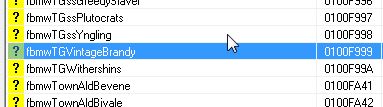
So, the number is 0100F999 (the "form ID" of the quest).
However, the first two digits (01) will change based on your load order:
Since Skywind.esm is actually at position 05, the form ID we'll type in-game is 0500F999.
What? Well, Skyrim.esm is 00, Update.esm is 01, then comes Dawngaurd (02), Hearthfires (03), Dragonborn (04) and finally Skywind (05).
Your load order may be different of course, but that's the general process for finding Form ID's. If you don't know your load order index, you can just try a few different first-two-digit possibilities in the console and you'll eventually get it.
Packing your mod to upload to Morroblivion.com
Once you're done with your mod to the best of your ability, you've got to get it ready to upload. In the old days, you usually needed just an .esp file.
With Skyrim's CK, you need to get the scripts you wrote too.
Step 1: Recompile all your scripts
For each quest you edited or worked on, open the quest window in the CK, and on the first tab (Quest Data) click the button "Recompile All Papyrus Scripts"

A window will pop up and inform you of the progress. Wait for it to complete.
Step 2: Find your scripts
The reason we recompile all the scripts is so that all of their "modified dates" in windows get updated.
Then go to your \Skyrim\Data\Scripts folder, and sort it by date modified. Then find the scripts that were updated a few minutes ago when you recompiled them.
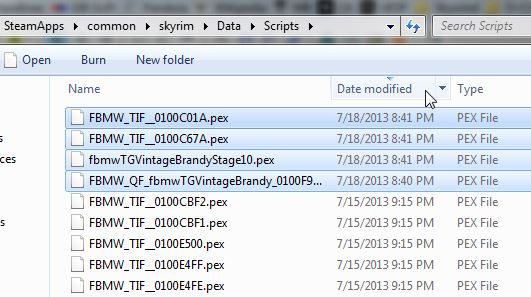
Next, find the equivalent files in \Data\Scripts\Source:
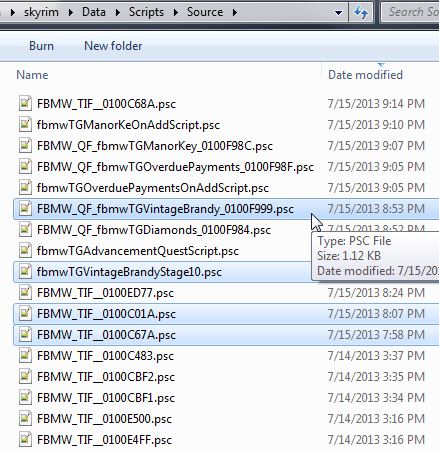
These are the scripts (the four in the \Data\Scripts\ folder and the four source versions in \Data\Scripts\Source\ you need to include with your upload.
Step 3: Archive your files with 7zip or a similar program
If you are uploading more than one or two files, it's best to archive them in a single compressed folder.
The best program to do this is probably 7zip - download link -
Once you get it installed,
- Create a new folder somewhere on your computer.
- Copy your .esp file to that folder (just 1 file in our example)
- Create a new folder within it and call it "Scripts".
- Copy all of the script files you recompiled to that folder (4 files in our example)
- Create a new sub-folder under "Scripts" called "Source".
- Copy all of the equivalent source script files you recompiled to that folder (4 more files in our example)
Again, make sure you include both the compiled scripts AND the source versions
Select both your .esp file and the Scripts folder that you have created. Then right-click and choose "add to (foldername).7z"
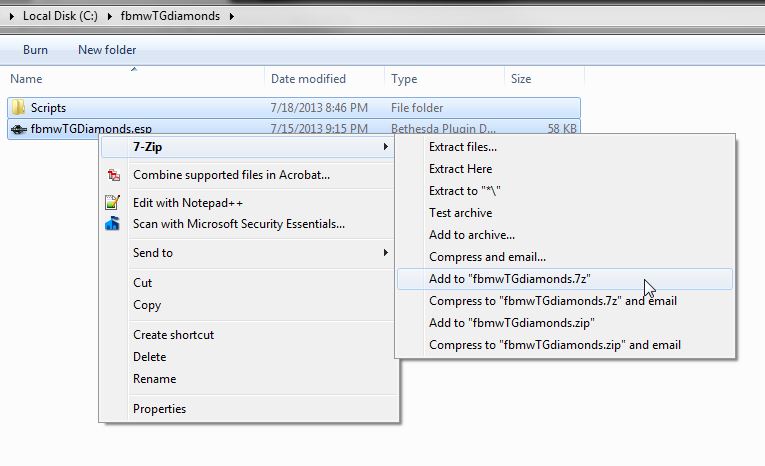
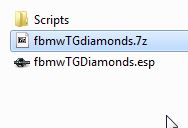
7-zip will create the archive containing the files. This is the file you upload to Morroblivion.com
Step 4: Upload the file to Morroblivion.com (or wherever, who cares)
Go to the quest hub thread.
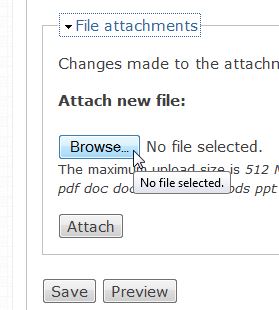
Post a new comment and attach your file.
In the comment explain what you did, and what if anything you DIDN'T FINISH.
... so hopefully someone else can figure it out and finish it. :-)
Skyrim Creation Kit site - a particularly useful reference for the CK.
- List of all tutorials
- Quest windows documentation
- Dialogue windows documentation
- Scripting information
Unofficial Elder Scrolls Pages (UESP) - a wiki covering all the content of the original Morrowind game, as well as the other games
- Morrowind main page
- Morrowind Quests main page
- Tribunal main page
- Tribunal Quests main page
- Bloodmoon main page
- Bloodmoon Quests main page
Oblivion Construction Set site - if you are having trouble using the Oblivion CS
If you're looking for something that's not on here, try searching for it on the Skyrim Creation Kit site
Setting a quest stage:
Oblivion:
syntax: setstage questname #
example: setstage fbmwtgvintagebrandy 100
Skyrim:
syntax: property.SetStage(#)
example: GetOwningQuest().SetStage(100)
;does not require a property defined
example: fbmwtgvintagebrandy.SetStage(100)
;requires a property defined for the quest
Starting a quest:
Oblivion:
syntax: StartQuest questname
example: startquest fbmwtgvintagebrandy
Skyrim:
syntax: property.start()
example: fbmwtgvintagebrandy.start()
;requires a property defined for the quest
Displaying & Completing Quest Objectives:
Oblivion: N/A
Skyrim:
syntax: property.SetObjectiveDisplayed(#)
;if setting a objective for a quest other than the one that you are in
syntax: GetOwningQuest().SetObjectiveDisplayed(#)
;if setting an objective for the current quest you are working on
syntax: SetObjectiveDisplayed(#)
;if you are in that quest's stage tab
example: fbmwtgvintagebrandy.SetObjectiveDisplayed(10)
;requires a property defined for the quest
example: GetOwningQuest().SetObjectiveDisplayed(10)
;no properties needed
example: SetObjectiveDisplayed(10)
;no properties needed
For completing objectives, replace SetObjectiveDisplayed with SetObjectiveCompleted
Adding and removing items from the Player:
Oblivion:
syntax (remove): player.removeitem itemref #
example (remove): player.removeitem 0puvintagecomberrybrandy1 1
syntax (add): player.additem itemref #
example (add): player.additem gold001 1000
Skyrim:
syntax (remove): property.RemoveItem(property, #)
example (remove): Game.GetPlayer().RemoveItem(FoodVintageBrandy, 1)
;requires only the item's property defined
example (remove): playerref.RemoveItem(FoodVintageBrandy, 1)
;requires both the "playerref" property and the item's property defined
syntax (add): property.AddItem(property, #)
example (add): Game.GetPlayer().AddItem(Gold001, 1000)
;requires only the item's property defined
example (add): NPCref.AddItem(Gold001, 1000)
;requires both the "NPCref" property and the item's property defined (it could be anyone, or a container, or the player)
Adding or removing items from the NPC (speaker):
Oblivion:
syntax (remove): removeitem itemref 1
example (remove): removeitem Gold001 1000
syntax (add): additem itemref 1
example (add): additem 0puvintagecomberrybrandy1 1
Skyrim:
syntax (remove): akSpeakerRemoveItem(property, 1)
example (remove): akSpeaker.RemoveItem(Gold001, 1000)
;requires a property defined for the item
syntax (add): akSpeakerAddItem(property, 1)
example (add): akSpeaker.AddItem(FoodVintageBrandy, 1)
;requires a property defined for the item
Changing a faction reaction:
Oblivion:
syntax: modfactionreaction faction1 faction2 #
example: modfactionreaction 0thievessguild playerfaction 5
Skyrim:
syntax: Property1.ModReaction(Property2, #)
example: ThievesGuild.ModReaction(PlayerFaction, 5)
;requires two properties defined, one for each faction
Changing a faction rank:
Oblivion:
syntax: Player.SetFactionRank faction, rank#
example: Player.SetFactionRank 0ThievesSGuild, 1
Skyrim:
syntax: property.SetFactionRank(property, rank#)
;requires two properties defined -one for the actor, one for the faction
example: Game.getPlayer().SetFactionRank(ThievesSGuild, 0)
;requires only the faction property since we use "Game.getPlayer()"
Starting combat with the player:
Oblivion:
example: startcombat player
Skyrim:
syntax: property1.startCombat(property2)
example: akspeaker.startCombat(Game.GetPlayer())
;does not require any properties if it's in a dialogue result script
Quick Guide for those who are already experienced with the Skyrim Creation Kit
Requirement
Set the following script prefix in your CK preferences : FBMW (all your TIF will be named FBMW_TIF_XYZABCD)
- use « ; » to write comments (for exemple commenting the script with the name of the quest it comes from is really useful)
Main Steps
-
Have a look at the quests tracker https://docs.google.com/spreadsheet/ccc?key=0AubmRhWYZsEbdDFaNEtxb1F4R0NOOXZrVkhBbE82c2c and reserve a quest that is not yet reserved.
-
find its article on a wiki like UESP (that will be your reference)
-
download the latest Skywind master
-
open Oblivion's construction set and load morrowind_ob.esm, this will be your reference). You can also use Morrowind's construction set, but the quests are organized a bit differently).
-
open Skyrim's creation kit and load Skywind.esm (used the stripped version of skyrim.esm)
-
Find your quest
-
In Creation Kit, under character > Quest
-
In Oblivion's Construction Set, push the Q button in the toolbar
-
-
Before starting implementation, check that you understand and apply all the rules/settings described here : http://morroblivion.com/forums/skyrim/skywind-mod-releases/3306
-
Implement the quest to the extent of capability
-
Save your changes in a esp file
-
package an archive with the esp file and the scipts files (both source and compiled versions)
-
Merge/Propose the esp for merge (caution about merging and packaging : if merging with the CK, the names of the script files are modified)
-
Once the esp file is merged, update the tracker to unreserve the quest and note what you did and what you weren't able to do.
Implementation
- Your quest stages should've already been created. You will have to script them.
- Aliases and Objectives will have to be created
- Dialogues: They should be there as well. If the dialogue is not in your current quest. Try to find its location by using the "find text" menu in the CK. Check in the quest tracker if the quest is currently reserved. If no, then reserve the quest, go ahead and do your change. If yes, then contact the modder who reserved and coordinate with him or her. If your dialogue already have conditions, verify and fix them as this was a first rough pass. If the conditions haven't been done, you will have to implement them by comparing with morroblivion or morrowind.
- Dialogues: You will have to script the topic info fragments in order to advance the quets, give items to PC/NPC, etc....
- Some quests will need further scripts (like advancement in factions). Have a look at the quests that have already been implemented to understand how that was done.
If you never implemented a quest and feel lost, please have a look at the CreationKit.com tutorials, they're really well done.
a few points to know:
-
Quest Data : the description of the quest
-
ID : internal ID
-
Quest Name : appears in the journal
-
Priority
-
Start Game Enabled : is it started as soon as the game start (most of the times, no)
-
Quest conditions / Quest dialogue conditions
-
All these fields must be the same than in morroblivion (value, checked/unchecked, conditions)
-
Quest stages : the different steps of the quest
-
check « complete quest » if necessary
add script fragment if necessary (add comments using « ; »)
-
-
Quest Aliases
-
If you want to add a quest marker to any of your objectives, you need to use aliases
-
-
Quest Objectives
-
identify the various objectives of your quest (kill NPCxxx, bring itemYYY for every stage)
-
Create an objective for each one of them
-
for more clarity, the objective index usually matches the stage that describes this action being done.
-
add correct conditions
-
add aliases (that would be your quest markers).
-
|
Objective Index |
Display text |
Target Ref |
|
100 |
Bring shipment to Bivale Teneran |
Bivale Teneran [getStage fbmwVTraderLater ==30] |
-
Player Dialogue / Topics
-
all your dialogue will be there, except the greetings and special dialogue (see below)
-
Misc Tab
-
99% of the GREETINGS should be in the MISC tab. If you're greeting is missing in your quest, verify if it's not in another quest. if it's nowhere to be found, you can create it.
Tips
-
The order of the topic infos is extremely important ! Do not change it, unless you're confident in your change.
-
Check « force subtitle » on every topic info
-
order of the conditions: read this http://morroblivion.com/forums/skyrim/skywind-mod-releases/3306?page=1#comment-28712
-
Pay attention to the conditions you are writing ? Does it apply on the NPC talking or on the player ? Select subject or target
-
If a condition like getDeadCount == 1, getItemCount == 1 etc.. If that doesn't break the logic of other topic infos, use >= 1 (so that your conditions support more cases).
-
If you don't know how to do something for now, keep track of it ! (use Skywind's bugtracker and the quest tracker)
-
when a topic info fragment script is created, it usually needs to close the topic info screen [OK] and to reopen it to work correctly.
-
if you need to have a script, in order to declare properties, you can just type a « ; » character and a script will appear.
-
Comment your scripts ! (it helps reading them, for you and for the others)
- For conditions involving disposition, have a look at http://morroblivion.com/forums/skywind/skywind-development/2772
-
SAVE OFTEN !
- File > Preferences > Script : Prefix allows you to define an automatic prefix for your scripts
Tests
-
At least verify that all your scripts compile.
-
To test, run Skyrim with skyind.esm and your esp checked.
-
Try to walkthrough your quest.
Release
You have to send to Skywind's team (drop a line in the quest hub forum thread) :
-
your esp
-
the scripts (compiled and source), found in Skyrim/data/Scripts and Skyrim/data/Sources
-
Find them using the prefix of FBMW and the timestamp
-
In case of doubt, open your quest and on Quest Data, click « Recompile All Papyrus Scripts », it will update the corresponding files in your scripts folder (updating their timestamps).
-
Tutorial / Links
http://mw.modhistory.com/download-106-5552 A good dialogue tutorial for Morrowind modding, if you work with Morrowind's and want to understand what's in there.

So I'm trying my hand at
So I'm trying my hand at scripting and quest conversion using this tutorial - I'm a long time out of the game and things have changed a lot since the Morrowind days!
I wanted to start with a miscellaneous quest to see if I could get the hang of it again, so eloth recommended I start with 'Death of a Taxman' - that appears to be too much right now (Papyrus' event system is stumping me, can't even get a quest to trigger on examination of the body) so I might start with something smaller, like 'Hentus Needs Pants' (that quest cracks me up every time).
So, um, hello and hopefully I will have something to contribute soon!